If your products have different options (within a single product item), you can configure that for your benefit.
By default, the catalog is built the way that it stores product options in 3rd additional fields, and operations with the options are enabled.
You can change the way the program handles product options by opening the 'Add to order' window and then clicking the 'Options' button.
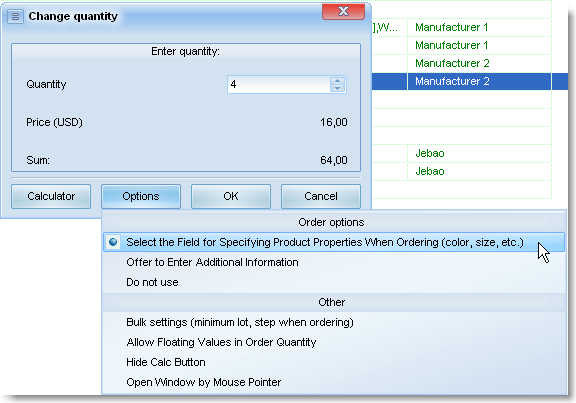
Select the required item and set its options according to the instructions.
When operations with product options are enabled (by default they are enabled), opening this field for editing on the product list brings up a special window for specifying options.
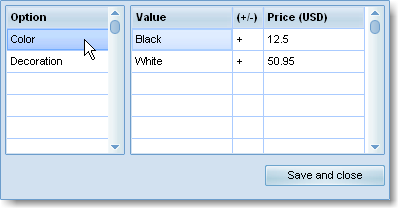
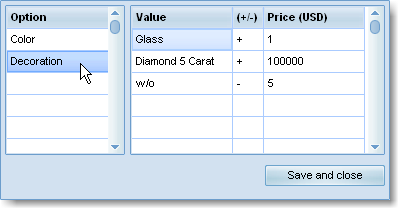
+/- price indicates the change in the product price to greater or lesser from the default price.
Here is what it looks like on the order screen in the catalog.
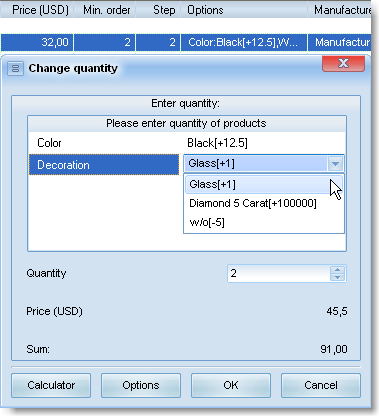
And here is the same screen in an on-line store (screenshot taken in OpenCart)
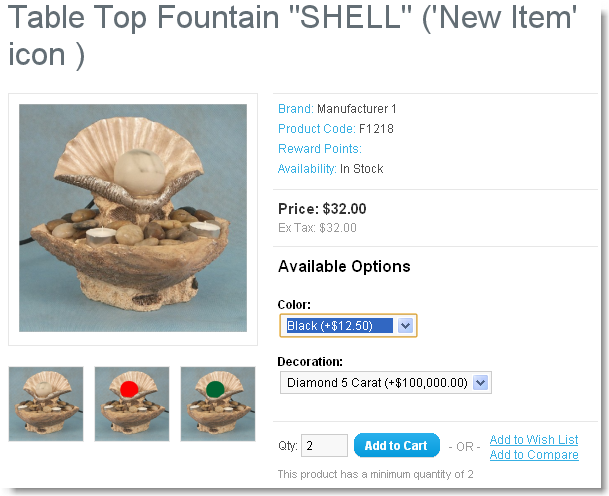
Price change is not mandatory! If an option does not affect product price, just don't enter anything there.
If a product has just one option, and it does not affect the price, you can take advantage of this simplified way of specifying options
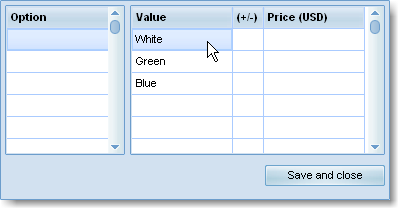
Here is what the order form with such option set looks like.
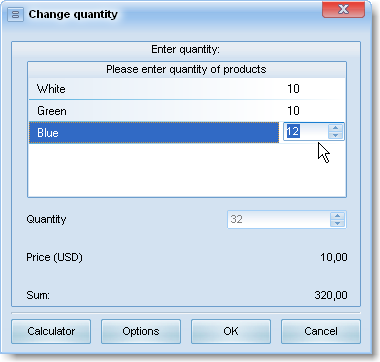
i.e. customer can instantly specify the quantity of products with different options.
In an on-line store, it appears the same way as in the previous case
(screenshot taken in VirtueMart)
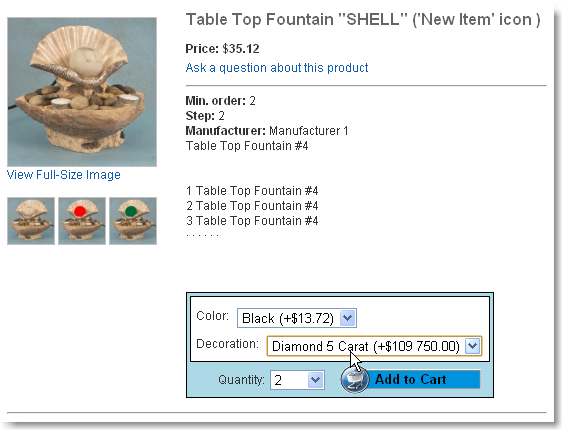
Option name, since it is not set explicitly, is taken from the column title.
Obtaining options when importing products from price list
Options are stored in the program as follows.
Name1:value1[+/-price],value2[+/-price];Name2:value1[+/-price],value2[+/-price], etc.
Example:
Color:Black[+12.5],White[+50.95];Decoration:Glass[+1],Diamond 5 Carat[+100000],w/o[-5]
The decimal separator in price is strictly PERIOD, regardless of the separator used by the operating system.
Or, if prices are not used, and there is just one option, via comma: White,Green,Blue.
By default, the catalog is built the way that it stores product options in 3rd additional fields, and operations with the options are enabled.
You can change the way the program handles product options by opening the 'Add to order' window and then clicking the 'Options' button.
Select the required item and set its options according to the instructions.
When operations with product options are enabled (by default they are enabled), opening this field for editing on the product list brings up a special window for specifying options.
+/- price indicates the change in the product price to greater or lesser from the default price.
Here is what it looks like on the order screen in the catalog.
And here is the same screen in an on-line store (screenshot taken in OpenCart)
Price change is not mandatory! If an option does not affect product price, just don't enter anything there.
If a product has just one option, and it does not affect the price, you can take advantage of this simplified way of specifying options
Here is what the order form with such option set looks like.
i.e. customer can instantly specify the quantity of products with different options.
In an on-line store, it appears the same way as in the previous case
(screenshot taken in VirtueMart)
Option name, since it is not set explicitly, is taken from the column title.
Obtaining options when importing products from price list
Options are stored in the program as follows.
Name1:value1[+/-price],value2[+/-price];Name2:value1[+/-price],value2[+/-price], etc.
Example:
Color:Black[+12.5],White[+50.95];Decoration:Glass[+1],Diamond 5 Carat[+100000],w/o[-5]
The decimal separator in price is strictly PERIOD, regardless of the separator used by the operating system.
Or, if prices are not used, and there is just one option, via comma: White,Green,Blue.