The application allows attaching related products to product items. For example, upon selecting a printer, the application will prompt the user to look at cartridges and paper.
To enable this function, use the menu: Service - Options - Additional Settings. Select the item: "Show related products pane". The additional pane will appear under the product list.
How to add related products to
your digital catalog
Selecting an item on the product list shows the list of related products.
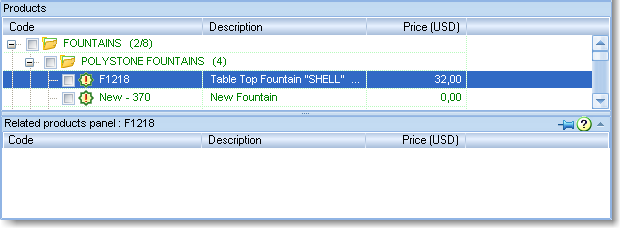
Fig. 1
On Fig. 1, the list is empty.
On the product list, select the item, which related products are to be added to.
The related products themselves are located ON THE SAME PRODUCT LIST, but
possibly in other subgroups or simply higher or lower.
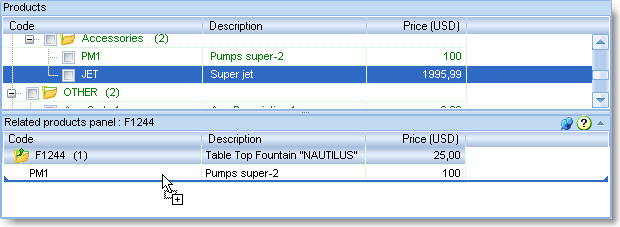
Fig. 2
To get started with adding related products, click on the pin icon on the header
of the pane.
The pane will be pinned behind current position. The pin icon will changed; the
pane will be "pinned" (Fig. 2).
Now you can navigate through the primary list of products and drag them with the
mouse to the related products pane.
To delete an item from the related products pane, press the Del (Delete) key on
the keyboard.
The related products list you have created will be saved automatically.
You and your users can view related products or add these products to order just
the way they would do with the primary product list.
If the related products list is not empty, the first item on it will be the
primary product, and you can always get back to it at any moment by clicking on
it.
You can automatically move the list of related products to the Catalog when importing from your database (See more...)