When you open the "Products Catalog" tab, you will see the first group of items list. To select a different group, click on the drop-down menu.
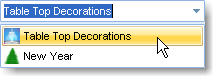
Select the group of items you need on the list that appears.
The list of items that belong to the selected group will appear below.
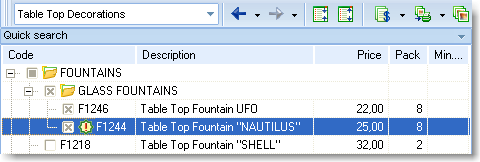
(
Description of Checkboxes in the Product List
here
)
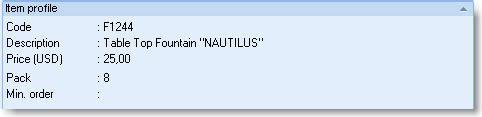
Click on the item you are interested in, and the item information will be
displayed in the bottom part of the window in the item profile with
the item photo at the right.
The nested groups are expanded with a click on the plus to the right of the nested group name.
Double-clicking on a selected item will add that item to the order.
There are three information tabs at the right:
The first image, the second image, and the detailed description.
Buttons on the image tabs:
- The first group of buttons is in charge of switching the display mode for the current photograph. Fit to window – the photograph, if possible, will be fit in the available window area; 1:1 – the photo will appear in the actual size, and you will be able to view it in detail using the scrollbars (this is not productive for the new images and for just about all new photos downloaded off the Internet during the updates). (Click here for details).
- Print current item (click here for details).