Clicking on an item in the list of items will display the item’s photo on the right side of the main window. If photo is not available, the “No Image” message will appear. You can obtain the missing photos having performed the update via the Internet. (Click here for more.)
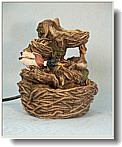
By default, photo displays in its special area and fits the current window size. Clicking on the image will toggle to displaying the actual size photo. This way you may see more details on the image. If the photo exceeds its window size, scroll bars will appear to navigate through the photo. (If the photo’s actual size is rather small, the image will be zoomed out.)
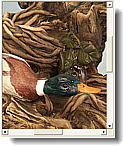
Another clicking on the image will toggle to the original display mode.
You can toggle the image display mode with the following buttons available on
the control panel:

 or – using the context menu: